The Fast Way to Make an AI Presentation (That Still Looks Professional)
AI can generate a deck in under a minute. The hard part is getting slides that look presentation-ready: clean diagrams, readable chart labels, and visuals that don’t fall apart on a projector.
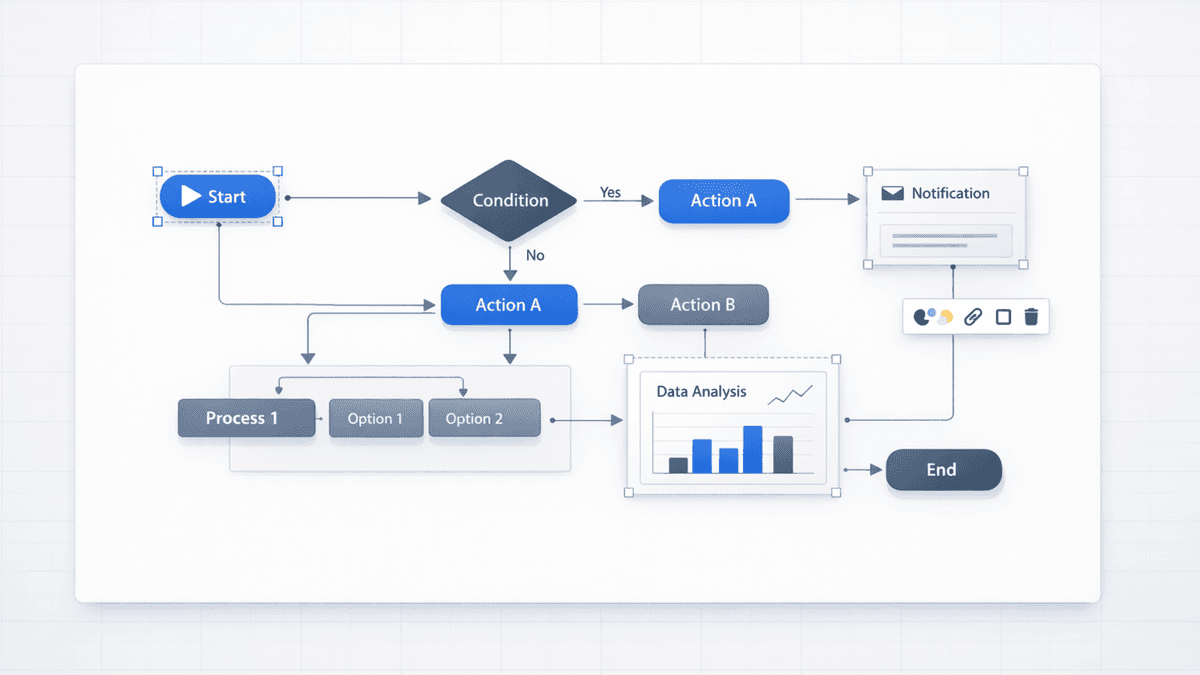
That’s where Nano Banana Pro helps. It’s optimized for structured, information-dense visuals (charts, flowcharts, matrices), and Presentia exports the result as a .pptx from the /generate editor.
Current Presentia Workflow (Updated February 24, 2026)
Current workflow checkpoints
Step
Where in UI
What happens
1. Input
TwoStepHero
Prompt or document text is prepared for generation.
2. Generation
/generate
Slides are created progressively with visible generation progress.
3. Finalize
Edit/Preview + Export
Refine in Edit mode, then export PPTX or PDF from the toolbar.
Key points visual: input, progressive generation, refinement, and final export.
What You’ll Need
A Presentia account
A clear topic + audience
10 minutes to generate + refine
Optional (but recommended): a brand color palette and your logo for final polish.
What Is Nano Banana Pro (and Why It Matters for Slides)?
Nano Banana Pro is an AI image model designed for presentation-style visuals: charts, diagrams, and infographics where layout and text accuracy matter.
Here’s the practical difference:
Visual Task
General image models
Nano Banana Pro
Data charts with labeled axes
⚠️ Labels often messy
✅ Cleaner labels
Process flow diagrams
⚠️ Misaligned connections
✅ More consistent structure
Infographics with callouts
⚠️ Visual clutter
✅ Better spacing
2×2 matrices / frameworks
⚠️ Unclear placement
✅ Clearer layout
Projector-ready detail
⚠️ Variable
✅ 4K output
Step-by-Step: Creating Your AI Presentation in Presentia
Topic: Series A pitch deck for a B2B SaaS company in healthcare billing automation Audience: healthcare-focused VCs Slide count: 10 Tone: confident, data-driven, simple language Must-include slides: TAM/SAM/SOM, competitive 2×2, pipeline funnel, product architecture diagram, 90‑day roadmap Brand: primary color #8E36E6, clean white background
Step 3: Generate with Nano Banana Pro Enabled
In Presentia:
Create a new presentation
Paste your prompt
Set image model to Nano Banana
Generate
Step 4: Review Like an Editor (Not a Perfectionist)
On the first pass, look for:
Is the story flow correct?
Are the key visuals on the right slides?
Any slide that needs regeneration?
Regenerate only the slides that miss the mark.
Step 5: Finalize in Presentia Edit Mode, Then Export
Complete final copy, layout, and visual edits in /generate Edit mode.
This is the key workflow: iterate in Edit mode, preview the AI render, then export once the deck is final.
Prompting Tips for Better Results
Name the visual format (e.g., “2×2 matrix”, “timeline”, “funnel”, “bar chart”).
Specify the style (“minimal, white background, purple accent”).